16-18 Minute Read
- Introduction: Your Office Just Got a New Workflow
- What Is the Cool Portal?
Video: Cool Portal Overview - Getting Started: Your Ice Company Dashboard
Logging In
Dashboard Overview
Settings & Branding
Setting Up Your Subdomain - How Orders Work in Cool Portal
Reviewing Incoming Orders
Accepting Orders (Direct to RouteBuilder)
Rejecting Orders (With a Reason)
Order Statuses Explained - Managing Support Requests
Viewing & Updating Tickets
Status Workflow (New → In Progress → Escalated → Resolved) - Managing Registrations
Viewing Registered Stores
Filtering by Active, Previously Active, and Inactive
Deactivating a User - The Customer Experience: What Your Customers See
- How Cool Portal Fits Into Your CRS Workflow
Cool Portal → RouteBuilder → CR Driver App → CoolConnect - How It Works Alongside Existing Schedules
- Tips for Driving Customer Adoption
- Start Using Cool Portal Today
For Current CRS Customers
For New Visitors - Additional Resources
Click on any section of this table of contents to quickly navigate to that area of the blog post.
Introduction: A Smarter Way To Manage Customer Orders
If your office team starts most mornings sorting through voicemails, returning missed calls, and manually entering orders into the system, you already know how much time that process takes and how much room it leaves for errors. For many ice companies, this is still the daily reality. Orders come in through phone calls, voicemails, texts, emails, and sometimes even handwritten notes. Every one of those orders has to be interpreted, entered, and routed before a truck can move.
It works. But it doesn’t scale. And during peak season, it becomes the bottleneck that slows everything down.
Cool Portal was built to solve this. It gives your recurring customers a simple, branded online portal where they can place restock orders, submit custom orders, and send support requests without ever picking up the phone. On your end, those orders appear inside your Cool Portal dashboard with full details, ready to be reviewed, accepted, and sent directly into CRS and RouteBuilder for dispatch.
The result is fewer phone calls, cleaner mornings, more accurate orders, and a direct-to-dispatch workflow that keeps your operation moving faster.
This guide walks through everything your team needs to know to set up, manage, and get the most out of Cool Portal. It covers everything from configuring your dashboard and branding to understanding what your customers see when they log in, place orders, and track their deliveries.
What Is Cool Portal?
Cool Portal is an 24/7 online ordering system built specifically for ice companies and their recurring customers. It gives your customers a branded portal where they can place restock orders, submit custom orders, track the status of their deliveries, and send support requests, all without calling your office.
Every ice company that activates Cool Portal gets a unique, branded subdomain that matches their business. Your logo, your colors, your company name. When your customers visit that link, they see your brand, not ours. They sign up, verify their stores using recent receipt information, and from that point forward they have a simple dashboard where they can manage their orders and communicate with your team.
On your side, every order that comes through Cool Portal appears inside your dashboard with full details attached: customer name, location, quantity, order type, delivery date, and any notes the customer included. Your office team reviews the order and either accepts or rejects it with one click. Accepted orders are sent directly into CRS and RouteBuilder, ready for dispatch. No manual entry. No double work. No missing details.
This is where Cool Portal separates itself from just being a convenience feature. It’s a workflow change. Instead of your team spending the first hour of the day returning calls, listening to voicemails, and typing orders into the system, they can open the dashboard and start processing orders that are already structured, detailed, and ready to go.
Benefits For Your Business
Cool Portal isn’t just about reducing phone calls. Even though that alone saves your office real time every day. Here’s what changes when your customers start ordering online:
This Year in Review outlines what’s new. The next step is making sure those tools are actually working inside your operation.
24/7 Ordering Access.
Your customers can place orders at any time of day or night. No more after-hours voicemails stacking up overnight. No more early-morning rush calls. Orders come in structured and ready for review before your team even arrives.
Fewer Phone Calls, Less Office Stress.
Recurring customers who move to the portal stop calling for every refill and reorder. That frees up your phone lines for new business, urgent requests, and the work that actually needs a conversation.
More Accurate Orders Every Time.
Every order submitted through Cool Portal includes the store name, location, quantity, order type, requested delivery date, and customer notes. No more deciphering voicemails or chasing down missing details.
Direct-to-Dispatch Workflow.
Accepted orders flow straight into CRS and RouteBuilder. Your dispatcher sees them instantly with full details, ready to be assigned to a route. The entire handoff from customer request to routed delivery happens inside the system.
A Better Experience For Your Customers.
Your customers get a clean dashboard where they can view their stores, see upcoming and past orders, track delivery status in real time, and submit support requests. It’s faster and easier than calling and once they use it, most will prefer it.
Support Requests Have a Home.
Instead of fielding support calls, texts, and emails across multiple channels, your customers can submit support requests directly through the portal. Your team tracks them in one place with clear statuses, no more digging through inboxes to find who asked for what.
Video: Cool Portal Overview
Before diving into the details, watch this short overview to see how Cool Portal works from start to finish. This video walks through the full workflow, from a customer placing an order in the portal to your office reviewing and accepting it to that order appearing inside RouteBuilder ready for dispatch.
If you want to see how the entire process connects, from customer order to dispatched route in just a few clicks, this is the best place to start.
Getting Started: Your Ice Company Dashboard
Once Cool Portal is activated on your license, your team can log in and start configuring your portal right away. This section walks through everything you need to know to get set up, from logging in for the first time to customizing your branding and going live with your customer-facing portal link.
Video: Ice Company Dashboard Walkthrough
This video walks through the full ice company dashboard inside Cool Portal, including how to log in, navigate orders and support tickets, configure your settings, and set up your branding.
Logging In
To access your Cool Portal dashboard, go to cr.cool and log in using the same email and password you use for Cool Running Software. No separate account is needed.
Once logged in, you will see a list of available licenses tied to your account. Select the license you want to manage, and you will be taken directly to your Cool Portal dashboard.
Tip: If your company operates under multiple licenses, you can switch between them at any time from within the portal. Each license has its own Cool Portal setup, branding, and customer base.
Dashboard Overview
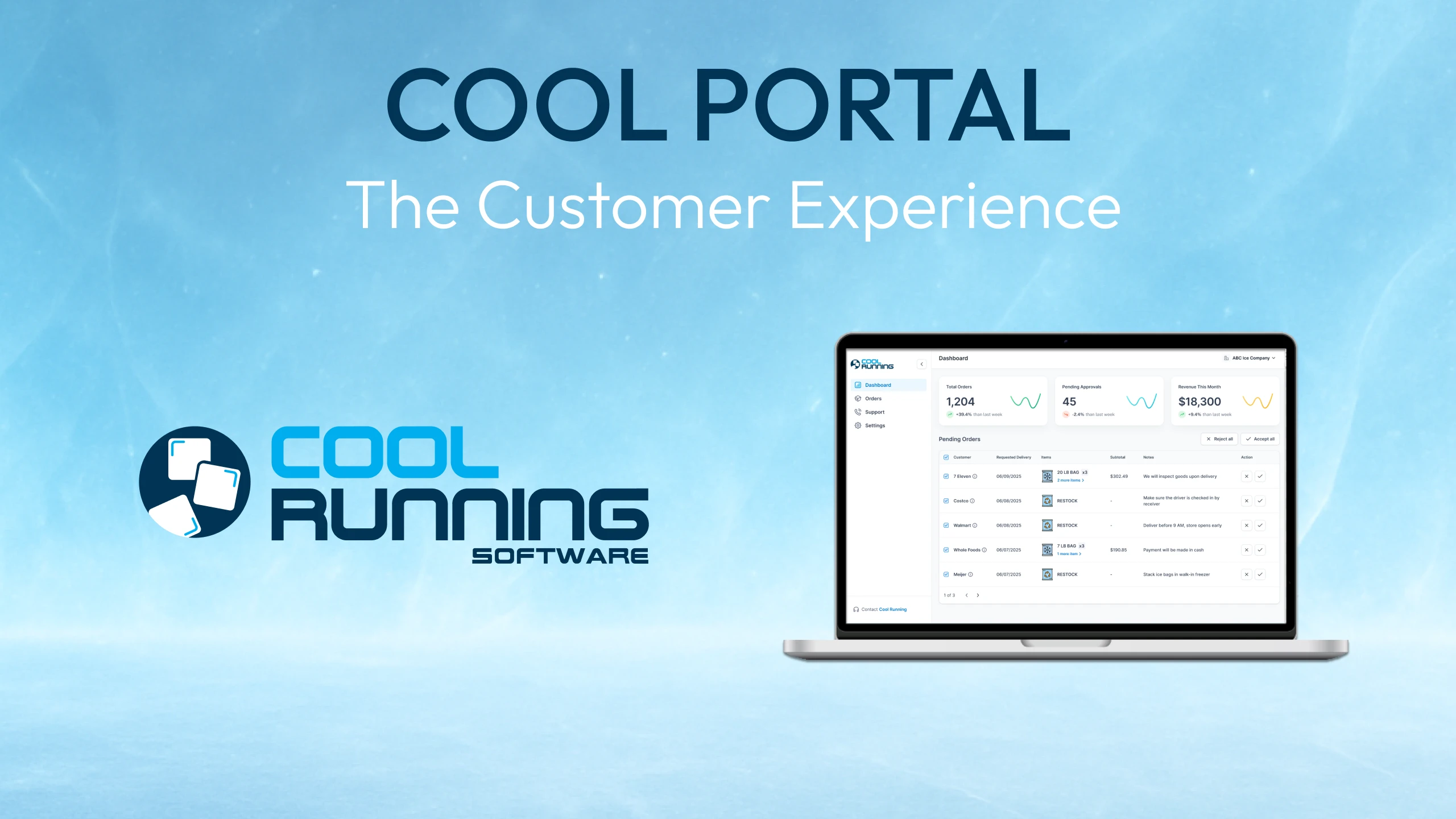
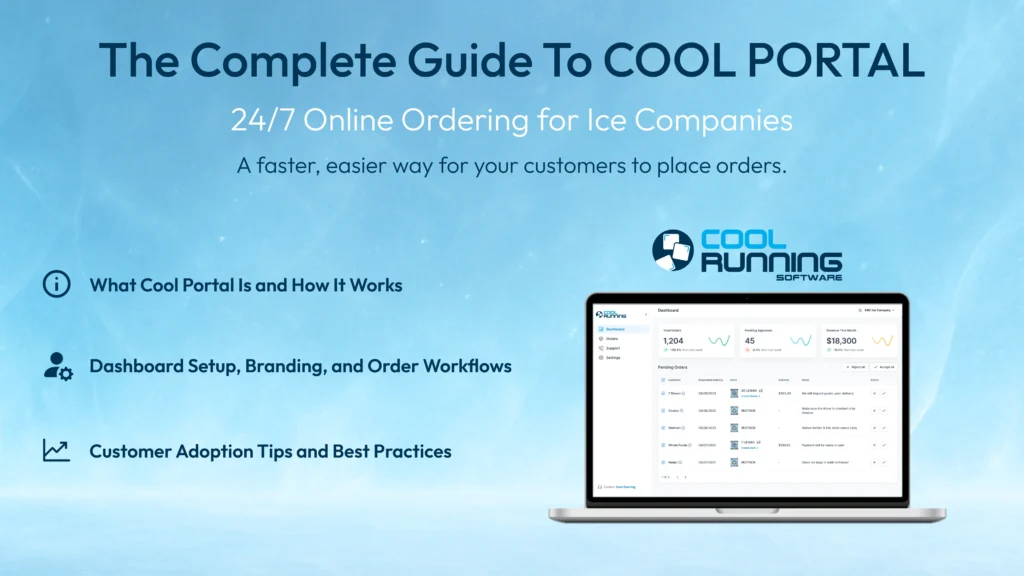
Your dashboard is the central hub for everything happening inside Cool Portal. From here you can see your key metrics at a glance and navigate to any area of the portal.
At the top of the dashboard you will find six cards:
- Pending Orders: Orders submitted by your customers that are waiting for your team to review.
- Accepted Orders: Orders your team has approved and sent into CRS and RouteBuilder for dispatch.
- Open Support Tickets: Active support requests from your customers that have not yet been resolved.
- Resolved Support Tickets: Support requests that have been completed and closed.
- Active Stores (This Month): The number of registered stores that have placed at least one order during the current month.
- Total Registered Stores: The total number of stores that have signed up and been verified inside your portal.
These cards are clickable. Selecting any one of them takes you directly to the relevant section with the appropriate filters already applied, so you can take action immediately without extra navigation.
Tip: Make it a habit to check your dashboard first thing each morning. Any orders placed overnight will be sitting in your pending queue, fully detailed and ready to review before your phones even start ringing.
Settings and Branding
The Settings section is where you configure how your Cool Portal looks and operates for your customers. This is what makes the portal feel like yours, not ours.
Inside Settings you will find:
- Notification Email: This is the email address that receives alerts when new orders or support requests come in from your customers. Set this to whoever on your team will be reviewing and managing incoming portal activity.
- Company Name: This is the name that appears on your customer-facing portal. Make sure it matches what your customers know you as.
- Branding: This is where you upload your company logo, set your brand colors, and upload a favicon. These elements are applied directly to your customer-facing portal so that when your customers log in, they see your brand from top to bottom.
- Cancellation Reasons: As you reject orders over time, your reasons are saved here so you do not have to retype them. You can also add new reasons at any time. This keeps your rejection workflow fast and consistent.
Tip: Take the time to set up your branding before you share the portal link with customers. First impressions matter, and a fully branded portal builds trust and professionalism from the moment your customers log in.
Setting Up Your Subdomain
Every ice company that activates Cool Portal receives a unique subdomain. This is the URL your customers will use to access your portal.
Your subdomain will follow this format:
yourcompanyname.cr.cool
For example, using the company name Olmsted Ice, your portal URL would be olmsted-ice.cr.cool. This link is displayed inside your Settings screen and is ready to use as soon as your branding is configured.
This is the link you will add to your website, include in emails to your customers, print on handout materials, and share anywhere you want to drive customer adoption. It is the single entry point for your customers to sign up, log in, and start placing orders.
Tip: Add this link to your company website as a “Customer Login” or “Order Online” button. The easier it is for your customers to find, the faster adoption happens. If you need help adding it to your site, reach out to your web developer or contact our team for guidance.
How Orders Work in Cool Portal
This is where Cool Portal delivers its biggest operational impact. Every order that comes through the portal arrives fully structured with all the details your team needs to make a decision, and the entire workflow from review to dispatch happens in just a few clicks.
This section breaks down how to review incoming orders, accept or reject them, and how order statuses work across both your dashboard and your customer’s view.
Video: Placing Orders and the Dispatch Workflow
This video walks through how customers place orders in the portal and how those orders flow through your dashboard into CRS and RouteBuilder for dispatch.
Reviewing Incoming Orders
When a customer submits an order through your Cool Portal, it appears in your dashboard as a pending order. You will also receive an email notification at the address you configured in your Settings, alerting you that a new order has come in.
To review the order, navigate to your Orders tab or click the Pending Orders card on your dashboard. Every order submitted through Cool Portal includes:
- Customer name
- Store location
- Order type (restock or custom with specific line items)
- Requested delivery date
- Quantity (for custom orders)
- Customer notes
This is one of the most important advantages of Cool Portal over phone-based ordering. There is no need for back and forth communication. You are not deciphering a voicemail or trying to remember what someone said on a call. Every detail is captured at the time the order is placed and attached to the order record for your team to review.
Tip: Encourage your customers to use the notes field when placing orders. Delivery instructions, gate codes, timing preferences, and any other details your drivers need can all be included at the time of the order. This reduces follow-up calls and gives your dispatch team better information from the start.
Accepting Orders
When you review an order and are ready to move forward with it, simply click on the order and select approve.
That order is immediately sent into CRS and appears inside your RouteBuilder screen with full details and customer notes attached. From there, your dispatcher can drag the order onto a route, publish it, and the driver will see it in the CR Driver App just like any other delivery.
Orders that came through Cool Portal are marked with a portal icon inside RouteBuilder so your team can easily identify where the order originated. This is especially helpful during busy days when orders are coming in from multiple sources.
The entire process from the customer submitting an order to that order sitting on a route ready for delivery can happen in a matter of minutes. No manual entry. No retyping details. No room for transcription errors.
Tip: Process your pending orders at set times throughout the day, such as first thing in the morning, midday, and before end of day. This keeps your RouteBuilder current and ensures customer orders are not sitting in the queue longer than necessary.
Rejecting Orders
Not every order can be fulfilled, and Cool Portal gives your team a clean way to handle that.
When you need to reject an order, click on the order and select reject. You will be prompted to provide a reason. You can choose from a list of pre-saved cancellation reasons that you have configured in your Settings, or you can type a custom response directly.
Whatever reason you provide is sent to the customer. They will see the updated status on their order along with your explanation, and they will receive an email notification as well. The status on their end will display as “Unable to Complete” along with the reason you provided.
This is a significant improvement over how most ice companies handle rejected requests today. Instead of a missed callback, an unreturned voicemail, or no response at all, your customer gets a clear, immediate answer with context. That builds trust even when the answer is no.
Common reasons you might reject an order include:
- An order is already scheduled for that location
- The requested delivery date cannot be accommodated
- The order does not meet minimum requirements
Order Statuses Explained
Cool Portal uses a clear status system so both your team and your customers always know exactly where an order stands. Here is how each status works and what it means on both sides of the portal.
- Pending: The customer has submitted the order but your team has not yet reviewed it. On the customer’s end, this shows as pending. On your end, it appears in your pending orders queue ready for action.
- Accepted: Your team has approved the order. It has been sent into CRS and is now inside your system. On the customer’s end, this shows as approved.
- Routed: The order has been placed on a route inside RouteBuilder. On the customer’s end, this shows as routed, giving them visibility that their delivery has been assigned and is on its way.
- Completed: The delivery has been made and the sale has been closed out. On the customer’s end, this confirms that the order has been fulfilled.
- Unable to Complete: Your team has rejected the order with a reason provided. On the customer’s end, this displays as unable to be completed along with the explanation your team included.
- Canceled: The order was canceled inside CRS after it had been accepted. On the customer’s end, this shows as canceled so they have clear visibility that the order is no longer being fulfilled.
This real-time status visibility is one of Cool Portal’s strongest benefits for your customers. Instead of calling your office to ask whether their order was received, whether it has been scheduled, or when it is arriving, they can log into the portal and see the answer instantly. That alone eliminates a significant number of inbound calls that your office deals with every day.
Tip: Let your customers know that they can track the status of their orders inside the portal. When customers understand that they have real-time visibility, they are far less likely to call your office for updates. This is one of the easiest adoption talking points to share when onboarding new customers.
Managing Support Requests
Cool Portal gives your customers a dedicated place to submit support requests and gives your team a structured way to manage them. Instead of support issues coming in through phone calls, emails, texts, and voicemails with no central record, every request lives inside your portal with a clear status and a full history.
This section covers how to view, manage, and resolve support tickets inside your Cool Portal dashboard.
Video: How Support Requests Work in Cool Portal
This video walks through how customers submit support requests and how your team can manage and update those tickets inside the Cool Portal dashboard.
Viewing and Updating Tickets
When a customer submits a support request through the portal, it appears in your dashboard under the Support tab. You will also receive an email notification at the contact address configured in your Settings.
Each support ticket includes:
- The customer’s store name and location
- A title describing the issue
- A detailed description provided by the customer
- An optional order ID if the request is related to a specific order
To view a ticket, navigate to your Support tab or click the Open Support Tickets card on your dashboard. From there you can open any ticket to see the full details and take action.
Your team can update the status of any ticket at any time, and every status change is reflected on the customer’s end in real time. Customers receive visibility into where their request stands without needing to call your office for an update.
Tip: Respond to new support tickets as quickly as possible, even if the resolution will take time. Simply moving a ticket from New to In Progress signals to your customer that their request has been seen and your team is working on it. That alone reduces follow-up calls.
Status Workflow
Cool Portal uses a simple four-stage status system for support requests. Each status communicates a clear message to your customer about where their request stands.
- New: The support request has been submitted by the customer and has not yet been reviewed. This is the default status for every incoming ticket.
- In Progress: Your team has acknowledged the request and is actively working on it. Use this status as soon as someone on your team begins looking into the issue.
- Escalated: The request has been moved to a higher level of attention within your team. This could mean it has been passed to a manager, a technician, or a specific department that handles that type of issue.
- Resolved: The issue has been addressed and the ticket is closed. On the customer’s end, this confirms that no further action is needed.
This status system replaces the invisible back and forth that most ice companies deal with today. When a customer calls about a broken merchandiser or a billing question, there is usually no shared record of that conversation. If a different team member picks up the phone the next day, they are starting from scratch.
With Cool Portal, every support request is logged, tracked, and visible to your entire team. You can see what was submitted, when it was submitted, who updated it, and what the current status is. That kind of visibility eliminates duplicate work, prevents dropped requests, and gives your customers a better experience without adding any work to your team.
Tip: Use the support ticket system as your primary channel for non-urgent customer issues. When customers call about something that does not need an immediate response, direct them to submit a support request through the portal instead. Over time this trains your customers to use the portal for support the same way they use it for ordering, and it keeps a clean record of every interaction.
Managing Registrations
As your customers begin signing up for your Cool Portal, you need a clear way to see who has registered, how active they are, and whether anyone needs to be managed. The Registrations tab gives you full visibility into every store that has been verified inside your portal.
Video: Managing Registrants in Cool Portal
This video walks through how to view and manage the stores registered in your Cool Portal, including filtering by activity level and deactivating access when needed.
Viewing Registered Stores
To access your full list of registered stores, navigate to the Registrations tab or click either the Active Stores (This Month) or Total Registered Stores card on your dashboard.
From here you can see every store that has signed up and been verified inside your portal. Each entry displays the store name, associated email, registration date, and last login date.
You can sort your registrations by:
- Last Login: See which customers are actively using the portal and which ones have not logged in recently.
- Date Registered: See when each store was added to your portal, which is useful for tracking adoption over time.
Filtering by Activity Level
Cool Portal lets you filter your registered stores into three categories so you can quickly understand how your customer base is engaging with the portal.
- Active: Stores that have placed at least one order during the current month. These are your engaged customers who are actively using the portal as part of their ordering workflow.
- Previously Active: Stores that placed an order last month but have not yet ordered this month. These are customers who have used the portal but may need a reminder or a check-in to keep the habit going.
- Inactive: Stores that have not placed an order in the last two months. These are customers who signed up but have not adopted the portal into their routine yet.
These filters give you more than just a status report. They give you a clear picture of where your adoption efforts are working and where they need attention. If you see a large number of previously active or inactive stores, that is a signal to re-engage those customers with a quick call, an email, or a reminder about the benefits of ordering online.
Tip: Check your registrations weekly. Pay close attention to the previously active filter. These are customers who already know how to use the portal but stopped. A short phone call or email asking if they need help can often bring them back before they become inactive.
Deactivating a User
If a customer is abusing your portal or you need to remove access for any reason, you can deactivate their account directly from the Registrations tab.
Click on the store associated with that user and select deactivate on their email. This disables the user’s ability to log in or place orders through your portal.
This gives your team full control over who has access to your Cool Portal without needing to contact support or make changes outside the system.
Tip: Deactivation is a tool for edge cases, not routine management. The goal is always to keep customers on the portal and ordering online. If a user is placing orders incorrectly or creating issues, consider reaching out to them first before deactivating access. A quick conversation can often resolve the problem and keep them engaged.
The Customer Experience: What Your Customers See
Understanding what your customers see when they use your Cool Portal is just as important as knowing how to manage your own dashboard. When your team knows the customer experience inside and out, they can answer questions, troubleshoot issues, and guide new customers through the process with confidence.
We have created a dedicated guide that walks through the entire customer journey step by step, from signing up and verifying their account to placing orders, tracking deliveries, submitting support requests, and managing multiple stores.
Read the full guide: Cool Portal – The Customer Experience Guide
Tip: Share that guide with your team. When your office staff understands exactly what the customer sees at every stage, onboarding conversations become faster and smoother. You can also share the link directly with customers who need a walkthrough of how to get started.
How Cool Portal Fits Into Your CRS Workflow
Cool Portal is not a standalone tool. It is a direct extension of the Cool Running Software ecosystem, and it connects to the same tools your team already uses every day. Understanding where it fits helps you see the full picture of what changes when your customers start ordering online.
Here is how an order moves through the system from start to finish:
Step 1: Customer Places an Order in Cool Portal
Your customer logs into your branded portal, selects their store, and places a restock or custom order in a few clicks. That order is submitted with full details including store location, quantity, order type, requested delivery date, and any notes.
Step 2: Your Office Reviews and Accepts the Order
The order appears in your Cool Portal dashboard as pending. Your team reviews the details and accepts or rejects it with one click. No manual entry. No retyping information into the system.
Step 3: The Order Flows Into CRS and RouteBuilder
Once accepted, the order is sent directly into CRS and appears inside RouteBuilder with all details and notes attached. Your dispatcher can drag it onto a route, assign it to a driver, and publish the route.
Step 4: The Driver Delivers Using the CR Driver App
The order shows up in the CR Driver App like any other delivery. The driver completes the stop, logs the sale, and the delivery data syncs back to the system in real time. The customer sees their order status update to completed inside the portal.
Step 5: The Sale Syncs to Accounting Through CoolConnect
Once the sale is closed out, CoolConnect can push the invoice directly into QuickBooks Online with no CSV exports, no middleman tools, and no manual uploads. The books reflect what happened in the field without any extra steps.
That is the full chain. The customer places an order. Office approves it. Dispatcher routes it. Driver delivers it. Accounting closes it. Every step happens inside the CRS ecosystem with no gaps, no manual handoffs, and no information lost along the way.
How Cool Portal Works Alongside Existing Schedules
If your company uses the Schedule Builder and Route Templates to manage recurring delivery schedules, Cool Portal does not replace that workflow. It layers on top of it.
Customers who are already on auto-schedules in CRS will see those existing scheduled orders inside their Cool Portal dashboard. This gives them visibility into what is already coming without any action needed on their part.
Cool Portal adds the ability for those same customers to place additional orders on top of their existing schedule. A next-day restock, a custom order for an event, an extra delivery to cover unexpected demand. These are the requests that used to come in as phone calls and voicemails. Now they come in structured, detailed, and ready for dispatch.
The two systems work together. Schedules handle the predictable volume. Cool Portal handles the on-demand volume. Your office gets both in one system.
Tips For Driving Customer Adoption
Activating Cool Portal and configuring your dashboard is the first step. The real results come when your customers start using it. The more customers you bring onto the portal, the fewer phone calls your office handles, the cleaner your mornings become, and the more your team can focus on running the business instead of taking orders.
Adoption does not happen on its own. It takes a deliberate, gradual approach. Here are the most effective ways to get your customers ordering online.
Start With Your Best Customers
You do not need to onboard every customer at once. Start with your most reliable, most engaged accounts. They are the most likely to try the portal, keep using it, and give you honest feedback. Once your top customers are ordering consistently, that momentum makes it easier to bring on the next group.
Put the Link Everywhere
Your portal link is the single entry point for customer adoption. Add a “Customer Login” or “Order Online” button to your website. Include it in your email signature. Send it to your customer list. Post it on social media. The more places it appears, the faster customers find it.
Use the Driver Handout
A simple printed handout with your portal link and a QR code is one of the most effective adoption tools available. Your drivers hand it directly to store managers during deliveries, putting the portal in front of the right person at the right time.
Tell Customers When They Call
Every inbound phone call for a refill or reorder is an adoption opportunity. Take the order as usual, but let them know they can now do this online anytime through the portal. This is not about refusing phone orders. It is about planting the seed so customers naturally shift to the faster option over time.
Send a Dedicated Email
Send a clear, simple email to your recurring customers introducing Cool Portal. Focus on the benefit to them: order anytime, track your deliveries, no more waiting on hold. One well-written email can drive a significant wave of signups in the first week.
Gradual Rollout Over Forced Migration
The goal is to make online ordering feel natural, not mandatory. Do not pressure customers into using the portal. Make it so simple and convenient that they choose it on their own. Every order placed through the portal instead of a phone call is a win. Over time, the balance shifts and the portal becomes the default.
Track Your Adoption Progress
Use the Registrations tab and your dashboard metrics to monitor adoption. Pay attention to your Active Stores count each month. Check the Previously Active filter for customers who may need a nudge. Adoption is not a one-time event. It gets stronger the more attention you give it.
Tip: Set a simple monthly goal for adoption. Whether it is five new signups or ten more stores placing their first portal order, having a target keeps your team focused and gives you a clear way to measure progress.
Start Using Cool Portal Today
For Current CRS Customers
Cool Portal is live and ready to be activated on your license. Click below to get started.
For New Visitors
Cool Portal is just one example of what Cool Running Software can do for your ice business. Click below to learn more or schedule a demo to see the full platform in action.
Additional Resources
Cool Portal - The Customer Experience Guide
A full walkthrough of what your customers see when they sign up, place orders, track deliveries, and submit support requests. Share this directly with your customers or use it to train your team.
Cool Portal — Live Deep Dive Webinar (For CRS Customers)
Join us for a post-launch training session covering Cool Portal features, workflows, best practices from early adopters, and live Q&A.
Cool Portal Training Videos
Watch the full video series covering everything from dashboard setup to customer onboarding to the complete order-to-dispatch workflow.
Have questions? Contact us directly at iceguy@coolrunningsoftware.com or 440-343-1744