5-7 Minute Read
Click on any section of this table of contents to quickly navigate to that area of the blog post.
Introduction: A Faster Way To Order Ice
If you are a recurring customer of an ice company using Cool Running Software, the Cool Portal gives you a faster, easier way to place orders without picking up the phone.
Instead of calling the office, leaving a voicemail, or waiting on hold, you can log into your ice company’s portal and place an order in a few clicks. You can submit a simple restock, place a custom order with specific products and quantities, track the status of your deliveries in real time, and send support requests directly to your ice company, all from one place.
The portal is available 24/7. You can place an order at midnight, on a weekend, or during peak season when the phones are busy. Your order arrives with full details so there is no confusion, no missing information, and no need for follow-up calls.
This guide walks through everything you need to know to sign up, add your stores, place orders, and get the most out of your Cool Portal.
Video: Cool Portal Customer Experience Overview
Before getting started, watch this short overview of the full customer experience inside Cool Portal. This video walks through how to register your account, add your stores, place orders, track your deliveries, and submit support requests.
Signing Up and Verifying Your Account
To get started, visit the portal link provided by your ice company.
This is a unique URL branded to their business.
This is a unique URL branded to their business.
From the login page, click Sign Up and enter the following:
- Your full name
- Your email address
- A password
Once submitted, you will receive a verification code at the email address you provided. Enter that code to complete your registration. This is a one-time verification step to secure your account.
After verification, you are logged in and ready to add your stores.
Tip: Use an email address you check regularly. Order confirmations, status updates, and support responses are all sent to this email.
Adding Your Stores
After signing up, you will be prompted to add your first store. To verify that a store belongs to you, the portal asks for two recent receipts from your ice company.
For each receipt, enter:
- The receipt number
- The total amount
Once both receipts are verified, your store is added to your account and you are ready to start placing orders.
If you manage more than one location, you can add additional stores at any time using the same process. Each store you add will appear in your portal and can be managed individually.
Tip: Keep a couple of recent receipts handy before signing up. This makes the verification process quick and easy. If you are unable to locate your receipt information, contact your ice company directly and they can help you get verified.
Your Dashboard
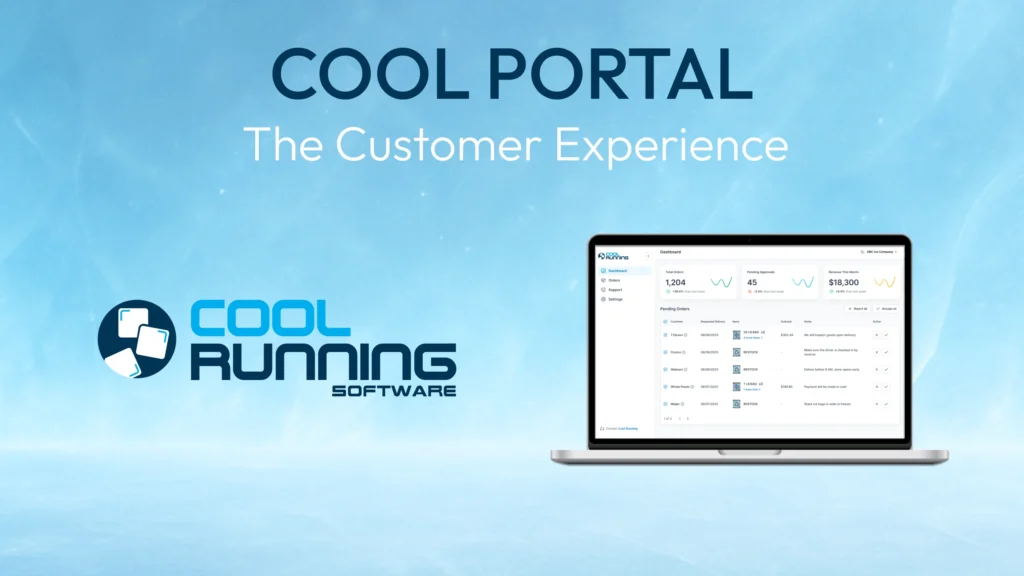
Once your stores are added, your dashboard becomes your home base. From here you can do everything in one place.
At the top of the dashboard you will find four quick actions:
- Restock Order
- Custom Order
- Need Support
- Manage Store
Below that, your dashboard displays your Pending Orders and Support Requests so you can see the current status of everything at a glance.
You can switch between stores using the selector in the top right corner of the screen. Everything on the dashboard updates to reflect the store you have selected, so you always know exactly what is happening at each location.
The left side navigation also gives you direct access to your Dashboard, Orders, My Stores, Support Requests, and Settings at any time.
Placing a Restock Order
A restock order is the simplest way to request a delivery. This is your standard “fill up the merchandiser or box on site” request.
From your dashboard, click Restock Order and enter:
- Your requested delivery date
- Any delivery notes (gate codes, timing preferences, special instructions)
Confirm the order and it is sent directly to your ice company for review. You will receive an email confirmation and can track the status of your order inside the portal.
That is it. No phone call, no voicemail, no waiting. A few clicks and your restock request is in the system with every detail attached.
Placing a Custom Order
A custom order lets you request specific products and quantities. The products available to you are the items assigned to your store by your ice company, so you are always selecting from the right product list.
From your dashboard, click Custom Order and:
- Select the products you need
- Enter the quantities for each item
- Choose your requested delivery date
- Add any delivery notes
Confirm the order and it is submitted just like a restock. Your ice company receives the full details and can process it immediately.
Tip: Use custom orders when you need a specific quantity for an event, a seasonal increase, or any situation where a standard restock is not the right fit.
Tracking Your Order Status
One of the biggest benefits of using Cool Portal is being able to see where your order stands at any time without making a phone call.
Every order you place moves through a series of statuses:
- Pending: Your order has been submitted and is waiting to be reviewed.
- Approved: Your ice company has accepted the order and it is in their system.
- Routed: Your order has been assigned to a delivery route and is on its way.
- Completed: Your delivery has been made.
- Unable to Complete: Your ice company was unable to fulfill the order. A reason will be provided so you know exactly why and can take next steps.
- Canceled: The order was canceled after it had been accepted
You can view the status of all your orders from the Orders tab. Filter by status to quickly find what you are looking for.
Submitting a Support Request
If you need to communicate something to your ice company that is not an order, the portal gives you a dedicated place to do that.
From your dashboard, click Support Request and enter:
- A title describing the issue
- A description with any relevant details
- An order ID if the request is related to a specific order (optional)
Your support request is sent directly to your ice company. You can track the status from your portal:
- New: Your request has been submitted.
- In Progress: Your ice company is working on it.
- Escalated: The request has been elevated for further attention.
- Resolved: The issue has been addressed.
This replaces the need to call, email, or text about non-urgent issues. Everything is tracked in one place with a clear status so you always know where things stand.
Managing Multiple Stores
If you manage more than one location, Cool Portal makes it easy to handle all of them from a single account.
Each store you add appears in your portal and can be selected from the store switcher at the top of your screen. When you switch stores, your dashboard, orders, and support requests update to reflect the selected location.
You can place orders, track deliveries, and submit support requests for each store individually. You can also activate or deactivate stores at any time depending on your needs.
Tip: If you manage several locations, adding all of them to your portal means you can handle every store’s ordering from one login instead of making separate phone calls for each location.
Start Ordering Online Today
Your ice company’s Cool Portal is ready to use. Log in, add your stores, and place your first order. Once you see how fast and simple it is, you will not want to go back to calling.
If you need help getting started or have questions about the portal, reach out to your ice company directly. They can walk you through the process and make sure you are set up for success.